HOW-TO · LEGACY GAMES · CHECKED ON NPI 3.0.2.1
Forcing SGSSAA and HBAO+ in older games with compatibility bits
For DX9-era games, set the game's Antialiasing - Compatibility (DX9) bits, an MSAA mode and Antialiasing - Transparency Supersampling to a Sparse Grid value; for HBAO+, set Ambient Occlusion - Compatibility bits and Ambient Occlusion - Usage to Enabled. The right bits differ per game, so start from the value NVIDIA ships for that game, type changes in NPI's Bit Editor, Apply and restart the game.
You need
- NPI
- 3.0.2.1 or newer
- Game
- DX9 era works best
- Time
- 15 minutes
What works in 2026 and what does not
Forcing antialiasing from the driver was built for DirectX 9 games, where the driver sees the render targets and can add samples. Newer APIs hand that control to the game. REPORTED · community guides
| API | What to expect | Our status |
|---|---|---|
| DirectX 9 | The case this page is for. NVIDIA itself ships AA and AO bits for many DX9 games (table below). | untested |
| DirectX 10 and 11 | Community reports describe a few games that accept bits and many that ignore them. Do not count on it. | untested |
| DirectX 12 and Vulkan | The game owns antialiasing. No credible report of driver-forced SGSSAA. | untested |
| Modern games with TAA, DLSS or DLAA | Use the in-game option, or DLAA through the DLSS override (see the DLSS override page). | untested |
Our lab has no NVIDIA GPU, so we have not run a game with forced bits, and nothing here is a measured result. What we can show is the real settings, the real Bit Editor, and the values NVIDIA itself ships. LAB · F17, driver package
Force SGSSAA in a DX9 game
SGSSAA is sparse grid supersampling antialiasing. In NPI it is the combination of three things: an MSAA mode, Transparency Supersampling set to Sparse Grid, and compatibility bits that let the driver apply them to that game.
Open the game's profile
Select the profile NVIDIA already has for the game, or create one for its exe.
Take control of MSAA
Add sparse grid supersampling
Set ↗ (Transparency Supersampling) to 2x, 4x or 8x Sparse Grid:
0x00000018,0x00000028or0x00000038.Enter the compatibility bits
Select ↗ (Antialiasing - Compatibility (DX9)) and use the Bit Editor to enter the bits for the game. The value NVIDIA ships is the safest start.
Keep LOD bias automatic
Leave ↗ (LOD Bias Auto-Adjust for SGSSAA) on, its default, so textures stay sharp. The LOD bias page explains it.
Apply and restart the game
Click Apply Changes and start the game fresh. Set the in-game antialiasing to its own MSAA setting if the game offers one, and turn off in-game options the community lists as incompatible.
The setting values come straight from NVIDIA’s setting definitions: Mode and Setting are in NVIDIA’s SDK header, the bits setting is not documented by NVIDIA. CODE · NPI 2994194
Force HBAO+
Select the game's profile
Use the profile NVIDIA ships for the game if it has one.
Enable AO
Enter the AO bits
Select ↗ (Ambient Occlusion - Compatibility) and enter the game’s bits in the Bit Editor.
Apply and restart
Click Apply Changes and restart the game.
Driver-forced AO only works with the games and bits NVIDIA or the community found. In driver 621.14, 93 of NVIDIA’s 6,563 profiles turn Ambient Occlusion usage on, and 93 set AO compatibility bits. OFFICIAL · driver 621.14 package
Using the Bit Editor
The Bit Editor opens from the toolbar button, but only when a setting row is selected. It shows one row per bit, numbered from #00, each with a checkbox and a count, a filter for profile names, a Test Area, and a Current Value box with Apply. LAB · UI · F17
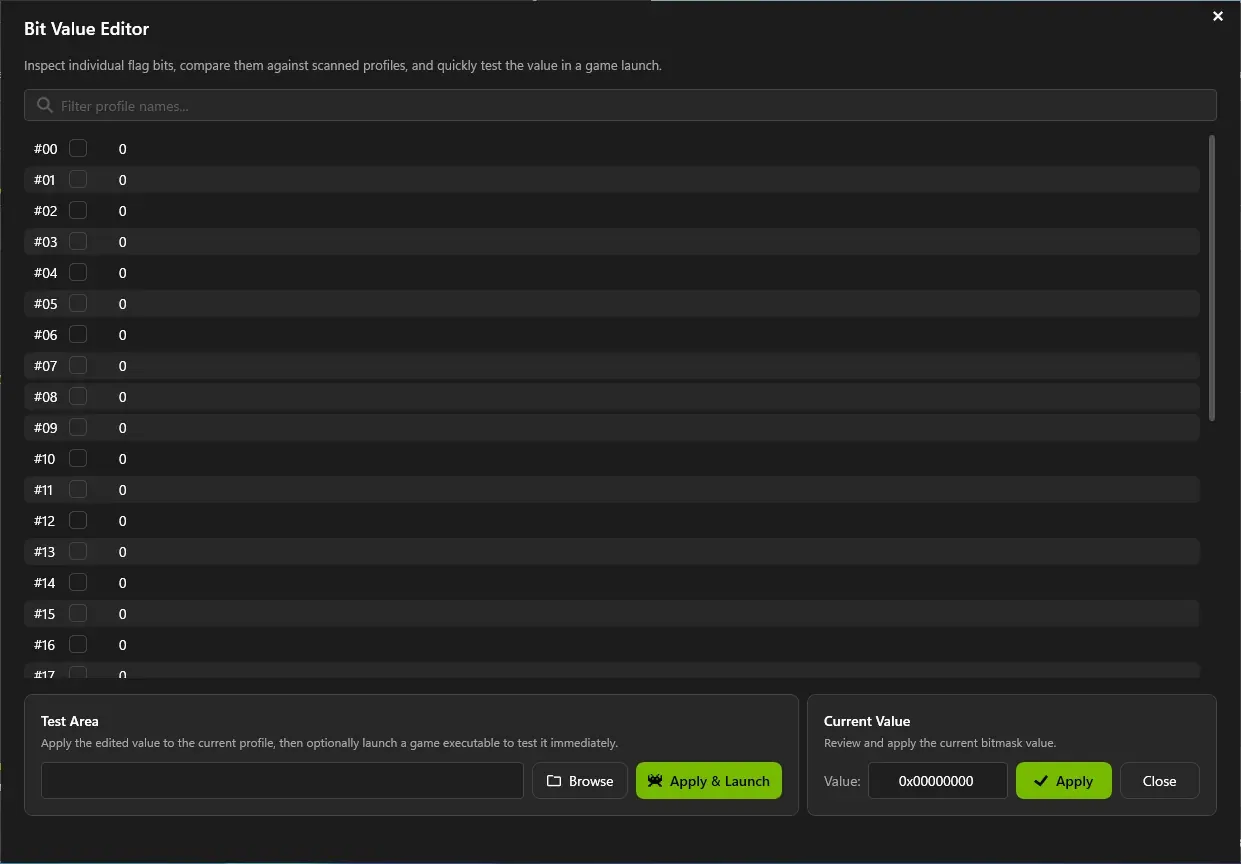
The Bit Value Editor in NPI 3.0.2.1 (demo mode). Tick a bit and the Current Value changes; the number beside each bit counts scanned profiles that use it.
Lab Windows Server 2025 · build 26100 · no NVIDIA GPU · NPI 3.0.2.1 · 2026-11-08 LAB · UI · NO NVIDIA GPU (mock mode)
- Tick bits or type the value. Typing a hex value in Current Value ticks the matching bits.
- Compare with other profiles. The editor’s subtitle says it lets you compare bits against scanned profiles, which is how you see what NVIDIA set elsewhere.
- Test Area. Browse to the game exe and use Apply and Launch to apply the value and start the game in one step. We did not launch a game from it.
To read a community value, type it below and see which bits light up. The cells are bit numbers, 31 on the left. NVIDIA ships the value for Dark Souls II in its own profile, and it is the starting value here.
bit 22unknown bitbit 12unknown bitbit 6unknown bitbit 2unknown bitbit 0unknown bit
Compatibility bits per game
These are not community recipes. They are the values NVIDIA itself stores in its predefined profiles in driver 621.14, so they are the bits NVIDIA uses for that game today. Open the same profile in NPI to see them. They show where the bits live and what a real value looks like. They are not a promise that forcing SGSSAA works with the game. OFFICIAL · driver 621.14 package
| Game | Exe | API (desk check) | AA bits (DX9) | AO bits | Tested by us |
|---|---|---|---|---|---|
| Left 4 Dead 2 | left4dead2.exe | DX9 | 0x00000010 | 0x00000014 | untested |
| Diablo III | diablo iii.exe | DX9 (DX11 added later) | 0x004412C1 | 0x0000002A | untested |
| Half-Life 2 | half-life 2/hl2.exe | DX9 | 0x40000010 | 0x0000000A | untested |
| BioShock | bioshock.exe | DX9 | 0x00000145 | 0x00020000 | untested |
| Mass Effect | masseffect.exe | DX9 | 0x00000045 | 0x00000020 | untested |
| Dark Souls II | darksoulsii.exe | DX9 (original release) | 0x00401045 | 0x00000033 | untested |
| Fallout - New Vegas | fallout3nv.exe | DX9 | 0x20000000 | 0x00000003 | untested |
| Mass Effect 2 | masseffect2.exe | DX9 | 0x080100C5 | not set | untested |
| Elder Scrolls V: Skyrim | none stored | DX9 | not set | 0x00000029 | untested |
| Fallout 3 | fallout3.exe | DX9 | 0x200100C5 | 0x00000003 | untested |
| Guild Wars 2 | gw2-64.exe | DX9 (DX11 added later) | not set | 0x0000002E | untested |
| Crysis 3 | crysis3.exe | DX11 | not set | 0x000E0000 | untested |
| Mirror's Edge | mirrorsedge.exe | DX9 | not set | 0x00000002 | untested |
| Borderlands | borderlands.exe | DX9 | 0x00000045 | not set | untested |
| StarCraft II | sc2.exe | DX9 to DX11 (changed over time) | not set | 0x00000027 | untested |
| Far Cry 2 | farcry2.exe | DX9 and DX10 | 0x00008000 | 0x000A0000 | untested |
Community bits for the same games exist, and they are often different from NVIDIA’s own because they target SGSSAA specifically. The Guru3D NVidia Anti-Aliasing Guide threads are the main source, and its contributors found most of them. We do not copy their lists: read the thread for your game, and test each value yourself. Users report that values differ by driver and game, so a value that works for one person may not for you. COMMUNITY · Guru3D threads
SLI compatibility bits (legacy)
NPI lists three SLI bit rows, all hidden in Reference: ↗ for DX9, ↗ for DX10 and DX11, and ↗ for DX12. NVIDIA still ships SLI values in 1,293 profiles for DX9 and 520 for DX10 and DX11 in driver 621.14, which is mostly history. OFFICIAL · driver 621.14 package
They matter only if you run two cards in SLI, which current GeForce cards no longer support. On a single GPU leave them alone.
Undo
Select the profile and use the row’s reset control, or click Defaults to clear the profile’s changes. Resetting only the rows you changed is enough: Mode, Setting, Transparency Supersampling and the two compatibility rows. The reset page shows each method. To go back to NVIDIA’s bits for a game, reset the compatibility row on its predefined profile rather than clearing it.
Questions people ask
Can I force SGSSAA in DX11 games?
Rarely. Forced antialiasing is a DX9-era feature. Community reports describe a few DX10 and DX11 games that accept bits, and none for DX12 or Vulkan. We have not tested any, so treat a DX11 game as unlikely to work.
What are compatibility bits?
A compatibility setting is a bit field the driver reads per game. Each bit switches a driver workaround on or off. NVIDIA does not document what individual bits do, which is why guides list values per game instead of explaining bits.
Where do I find AA bits for a game?
First look at the profile NVIDIA already ships: select it in NPI and read Antialiasing - Compatibility (DX9). Then the community bits lists, mainly the Guru3D anti-aliasing guide threads, list values for games and engines. Verify each value yourself.
Is HBAO+ still possible on RTX cards?
The settings are still in the driver and NPI shows them. NVIDIA ships Ambient Occlusion usage in 93 predefined profiles in driver 621.14, all for older games. Whether forcing it works for a game on an RTX card is untested here.
Do SLI bits still work?
Only if you have SLI, and current GeForce cards do not support it, so for nearly everyone the SLI rows are inert. NVIDIA still ships SLI values in its profiles, but they do nothing on a single GPU.
Sources
- NPI Bit Value Editor and setting definitions (source code) github.com · accessed 8 Nov 2026 · upstream
- NVIDIA driver 621.14 package nvidia.com · accessed 8 Nov 2026 · official
- NVidia Anti-Aliasing Guide (updated) forums.guru3d.com · accessed 8 Nov 2026 · community